Online tool
Good for a single short clip with only slight camera shake. You usually upload the video to the provider’s server; length, resolution, and settings are often limited.
For short, simple clips.
Shot handheld, from a bike, or with a drone? Here’s how to steady shaky videos after the fact—and remove the jello effect, too.
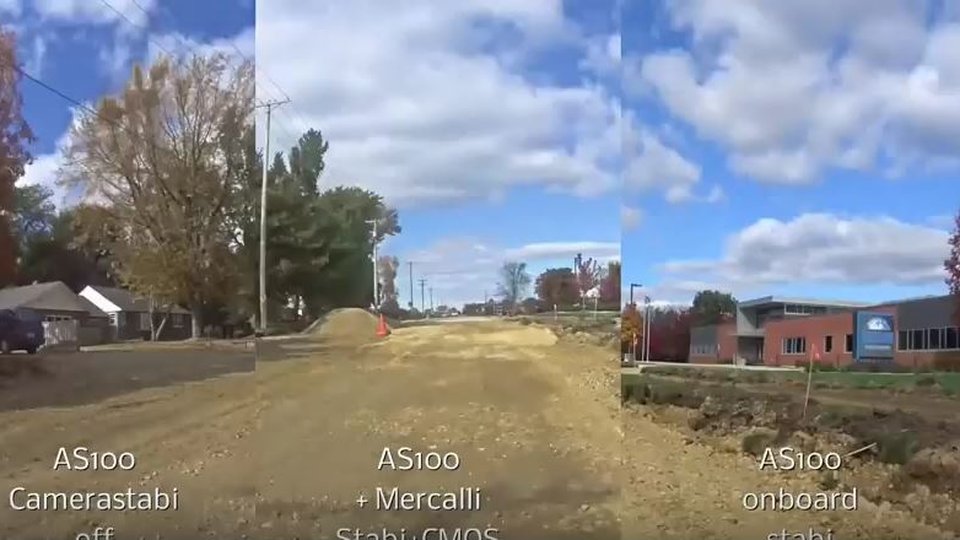
Shaky footage almost always happens when there’s no tripod at hand: when you film handheld, while walking, from a bike, or from a car. Uneven pans and zooms also look unsteady. Often the scene can’t be repeated—then the only option is to stabilize the video afterward.
To do this, a program analyzes the motion in the frame, tells intended camera movements from unintended ones, and compensates for the unintended ones. To avoid gaps at the edges of the frame, the image is enlarged slightly in the process.
Most action cameras, DSLRs, and camcorders today have a CMOS sensor. It records the lines of the image one after another. If the camera is jolted or vibrates while this happens, the image becomes distorted: it wobbles like jello, looks skewed, or appears squashed. Experts call this the rolling shutter effect, also known as “jello,” “wobble,” or “skew.” It can even happen with a gimbal, for example due to motor vibrations.
The tricky part: before stabilization, the effect is often barely noticeable. Once the video is steady, the wobble remains and becomes clearly distracting. That’s why the rule is: correct the rolling shutter distortion first, then stabilize. Explainer video on the rolling shutter effect (YouTube)
Load the shaky video into Mercalli V6 SAL. For long recordings, scene detection splits the clip into individual scenes.
Start the video analysis. Mercalli stabilizes the video and corrects rolling shutter distortion automatically. For difficult scenes, choose the “AI” or “AI+3D” method; “AI+3D” also compensates for camera tilt.
Check the result in the split before-and-after view and export the video. You can use the file right away or keep editing it in your video editing software.
Tutorials for Mercalli V6. The videos load from YouTube only after you click.
Good for a single short clip with only slight camera shake. You usually upload the video to the provider’s server; length, resolution, and settings are often limited.
For short, simple clips.
Handy if you edit right on your smartphone. For footage from other cameras and for longer videos, working on a small screen is tedious.
For phone videos on the go.
The right choice for valuable footage, long videos, or many clips at once: more settings, a before-and-after comparison, and with Mercalli V6 SAL, rolling shutter correction as well.
For demanding projects and lots of footage.
Related: Need to make people or license plates in your video unrecognizable? Read the guide Blur faces and license plates in video.
Without video editing software or with several video editing programs: Mercalli V6 SAL, the stand-alone application. Afterward, you continue using the finished video in your video editing software. Prefer to stabilize directly in your video editing software? Then choose the matching plug-in for Adobe, MAGIX, DaVinci Resolve and VEGAS (OFX), Corel VideoStudio, or EDIUS (Mercalli V5).
AI video stabilization, CMOS correction and image optimization at a professional level
Stand-alone application for Windows
AI video stabilization, CMOS correction and image optimization at a professional level
Premiere Pro · After Effects
AI video stabilization, CMOS correction and image optimization at a professional level
Video deluxe · Video Pro X
AI video stabilization, CMOS correction and image optimization at a professional level Da Vinci …
DaVinci Resolve · VEGAS Pro
AI video stabilization, CMOS correction and image optimization at a professional level
VideoStudio
Real-time video stabilization and image optimization
Grass Valley EDIUS
Yes. A program like Mercalli detects unintended camera movements and compensates for them largely automatically. The stronger the shake, the more the image is enlarged in the process.
A distortion caused by the CMOS sensor: it records the lines of the image one after another, so when the camera vibrates, the image wobbles or tilts. Mercalli corrects this automatically; for severe cases, there are the “Remove Wobble” and “Intensive Repair” methods.
Yes, as a plug-in for Adobe Premiere Pro and After Effects, for DaVinci Resolve and VEGAS (OFX), and for MAGIX, Corel VideoStudio, and EDIUS. The stand-alone application Mercalli V6 SAL also offers features that the plug-ins don’t have.
Yes. Mercalli V6 SAL analyzes and exports multiple videos one after another—individually or combined into a single file.
Last updated: November 15, 2026 · proDAD

The video is only now being loaded from YouTube (youtube-nocookie.com).